
Google Preferred Sources and Search Profiles: The Publisher Setup Guide

Somewhere on your site right now, a loyal reader is finishing an article they liked. They will close the tab, and the next time they ask Google a question on your beat, the answer will be assembled from whichever sources the engine picks. Nothing about that visit told Google this reader wanted to hear from you.
Google now gives publishers two ways to change that. Preferred Sources lets a reader tell Google to favor your site in Top Stories, AI Overviews, and AI Mode. Search profiles let a reader follow your brand so your content turns up more often in Discover. Both run on the same idea: the audience you already earned becomes a visibility signal inside Google’s AI surfaces.
This guide covers what each feature does, who qualifies, the exact setup steps, where to put the buttons, how to tell whether any of it is working, and what neither feature can do for you.
What Is Google Preferred Sources?
Google Preferred Sources is a Search setting that lets a reader choose the websites they want to see more often. Once a reader adds your site, your content is more likely to appear for that reader in Top Stories, and your links can carry a “preferred” badge inside AI Overviews and AI Mode. It is a per-reader signal that changes what the people who chose you see.
The feature started life as a Top Stories control. On May 27, 2026, Google extended Preferred Sources into AI Overviews and AI Mode, so links from a reader’s chosen sites now stand out inside AI answers the same way they do in the news carousel. In that announcement Google said any website that publishes fresh content is eligible, that people are twice as likely to click through to a preferred source, and that readers had selected more than 345,000 unique sources.
The second change came on August 20, 2026, when Google released an embeddable Preferred Sources button for publishers. Before the button, a reader had to leave your page, open Google’s settings, and search for your site by name. Now they tap once on your page, confirm, and land back where they left off. Google put the running total at more than 600,000 unique sources in the same post.
Two cautions on those numbers. Google has not published how it measured the twice-as-likely click figure, so treat it as directional for your site. And the 600,000 figure counts sources selected without saying how many readers or publishers sit behind it, so it tells you the feature is in use without telling you how many people have picked you.
Preferred Sources vs. Search Profiles: Which One Does What
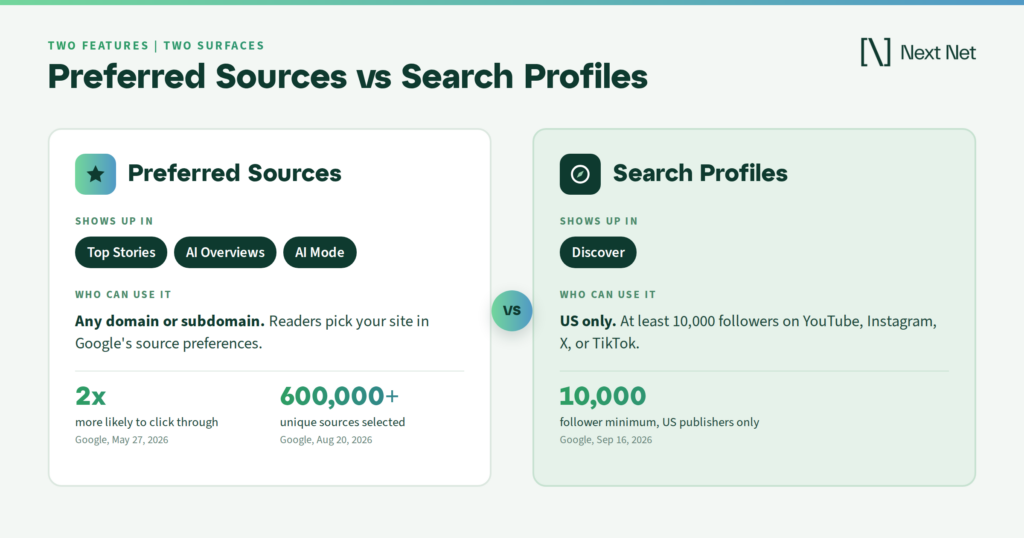
The two features get announced together and confused together. They reach different surfaces, ask different things of the reader, and have very different eligibility bars. Here is the side-by-side, drawn from Google’s own documentation.
| Preferred Sources | Search profiles | |
|---|---|---|
| What the reader does | Adds your site in Google’s source preferences | Follows your Search profile |
| Where you show up more | Top Stories, AI Overviews, AI Mode | Discover |
| Who qualifies | Any domain or subdomain listed in the source preferences tool that publishes fresh content | 10,000 followers on YouTube, Instagram, X, or TikTok; account holder 18 or older |
| What you install | JavaScript button, custom SDK trigger, or deeplink | Badge or text link to your profile URL |
| Availability | Top Stories globally; AI features wherever they run | United States only |
Most publishers should set up both. Preferred Sources works on the search results page and inside AI answers. Search profiles work on the feed people scroll when they are not searching at all. A reader who does both has told Google twice that they want your coverage.
Step 1: Confirm Your Site Is Eligible
Three checks come before any code. Skipping them is how publishers end up with a button that does nothing.
Check the source preferences tool
Open Google’s source preferences tool and type your domain into the search box. If your site appears, you can use every method in this guide. If it does not, the button has nothing to point to.
Pay attention to structure. According to Google’s preferred sources documentation, only domain-level and subdomain-level sites qualify. A site at example.com or news.example.com is eligible. A publication that lives at example.com/news is not, because subdirectories cannot be selected. If your editorial content sits in a folder on a corporate domain, that is a structural decision worth raising with whoever owns the site architecture.
Check your Search generative AI setting
This is the check most teams miss. Google’s documentation says that to appear as a preferred source in AI Overviews and AI Mode, your site has to be included in Search generative AI features in Search Console. That setting is the Search generative AI control, which Google rolled out to every website worldwide as of August 31, 2026.
The default is to include your site, so most publishers are fine. But if someone on your team chose to exclude the site, your links cannot appear in those AI features at all, which means no preferred badge there either. Top Stories is unaffected. Open Search Console, go to Settings, then Search generative AI, and confirm what is set, including on any child properties that may have been configured separately.
Keep that control separate in your head from crawler rules. The same Google help page says the control does not affect AI training, and it points to Google-Extended as the way to limit training. If your team is weighing crawler decisions at the same time, our guide on whether publishers should block AI crawlers walks through the tradeoffs, and the AI crawler directory lists the robots.txt line for each bot.
Keep publishing fresh content
Google’s eligibility language is simple: any website that publishes fresh content qualifies. A site that updates rarely can still be selected, but a preference only helps when there is something new for Google to surface on the reader’s next search.
Step 2: Add the Preferred Sources Button
Google offers three ways to send readers into the Preferred Sources flow. Pick based on what your CMS allows. None of them is required to be selected as a preferred source; they are tools for asking your audience, and Google says so directly in its documentation.
Option A: The standard JavaScript button (recommended)
This is two lines of HTML. The first loads Google’s library, ideally in the head of the page:
<script async src="https://news.google.com/swg/js/v1/publisher.js"></script>The second goes wherever you want the button to render:
<div google-add-preferred-source-btn></div>The button is Google-styled and translates itself based on the reader’s browser language. You can switch it to a dark theme by adding data-theme=”dark” to the div, or force a language with the data-lang attribute. When a reader taps it, they see a short confirmation screen from Google, tap Add, and return to the same spot on your page.
Option B: A custom trigger through the SDK
If the standard badge clashes with your design, Google’s SDK lets you fire the same flow from your own button or from a moment in your product, such as a completed newsletter signup. You can import it as an ES module or load the script with preferred-sources-control=”manual” and bind your trigger through a callback queue. The reader experience stays the same.
There is a practical bonus here. Because the click comes from your own element, you can log it in your analytics before handing off to Google. That gives you a count of how often readers start the flow, which Google’s tools will not give you. More on that in the measurement section.
Option C: A deeplink for locked-down CMSs and off-site channels
If your CMS strips scripts, use a plain link that opens the source preferences tool with your site already searched:
https://www.google.com/preferences/source?q=yourdomain.comThe deeplink also works anywhere a script cannot run: newsletters, social posts, podcast show notes, and QR codes on printed products. Google provides official translated badge images if you want the link to look like the button.
Step 3: Put the Button Where Loyalty Peaks
The button only works if the right people see it at the right moment. A first-time visitor who bounced in eight seconds will not add you. A reader who just finished your third article this week might. Place it where intent is highest.
The end of the article. The reader just got to the bottom, which is the clearest signal of satisfaction you have. A short line above the button helps: tell them what they get, such as seeing your reporting first the next time they search Google on this topic.
The newsletter. Your subscribers are your most loyal readers by definition. Put the deeplink in the welcome email and in a standing footer line. This is also the easiest win for teams that cannot touch site templates quickly.
Confirmation and account pages. Registration, subscription, and donation confirmations all catch a reader right after they said yes to you. A single line there costs nothing.
Author pages and bylines. Readers who follow a specific writer are often the most engaged segment you have. A button on the author bio page meets them where they already are.
Avoid turning the ask into an interstitial or a pop-up that covers the content. Google has long discouraged intrusive dialogs, and a reader who feels ambushed is not going to hand you a trust signal. Test placements the way you would test any subscription prompt: one change at a time, measured against returning-reader behavior.
Step 4: Claim Your Search Profile for Discover
Preferred Sources covers search and AI answers. For the Discover feed, the lever is a Search profile. Google’s Search profile documentation describes it as a single destination on Google that brings together your content from your website and platforms like Instagram, TikTok, YouTube, X, and Facebook. When readers follow your profile, the content linked there becomes more likely to appear for them in Discover.
Who qualifies
The bar is higher and narrower than Preferred Sources. Per Google’s Search profile help page, profiles are only available in the United States, the account holder must be at least 18, and you need at least 10,000 followers or subscribers on one of YouTube, Instagram, X, or TikTok. Google lowered the threshold to 10,000 on September 16, 2026, which Google says makes more U.S. publishers and creators eligible, and added multi-account support so one login can manage profiles for several sub-brands.
How to set it up
First, check whether Google already generated a profile for you. If your publication has a knowledge panel, search your name on Google and look for the View Search Profile link. Claim that one rather than creating a duplicate. If none exists, go to profile.google.com/claim, sign in with the Google account tied to your YouTube channel if you have one, and connect at least one platform account that meets the follower minimum. Your handle is set automatically from your most followed linked account.
A single Google account can manage up to 10 separate profiles, which matters for groups that run several mastheads. Each brand gets its own profile, and the same platform account can link to more than one profile when it is relevant to both.
Add the profile badge
Once the profile exists, link to it from your site using the URL pattern profile.google.com/@yourhandle, either with Google’s downloadable badge or a text link such as “Find us on Google Search.” Google’s brand rules are specific: keep tap targets at least 48 by 48 dp on Android and 44 by 44 px on iOS and web, do not stretch or recolor the G icon, and if you show the Search profile badge next to the Preferred Sources badge, use the labeled profile button rather than the bare G icon so readers can tell them apart.
Keep expectations calibrated. Google’s help page states plainly that creating a profile does not directly affect ranking in Search. What it changes is what followers see in Discover.
The Discover basics still apply
Followers raise your odds, but Google’s Discover guidance still decides whether your content is suitable. Pages are eligible automatically if they are indexed and meet Discover’s content policies. Google recommends large, relevant images at least 1,200 pixels wide, enabled with the max-image-preview:large setting and declared through og:image or schema.org markup rather than your logo. It also warns against clickbait, sensationalized headlines, and preview text that withholds what the story is about.
Google is also candid that Discover traffic is less predictable than search traffic and should be treated as supplemental. Plan for it as upside you cannot forecast.
How to Measure Whether It Is Working
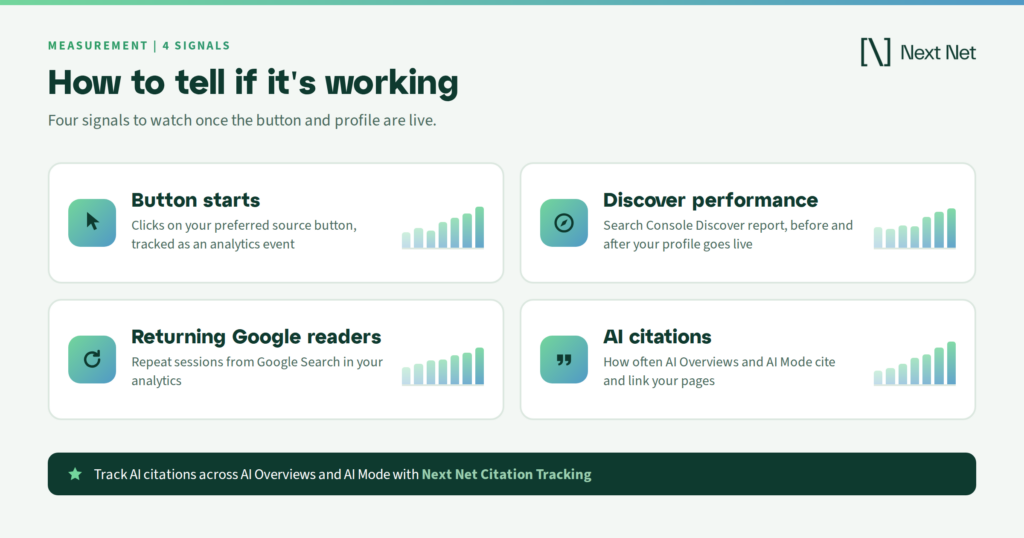
Here is the uncomfortable part. Google’s preferred sources documentation does not describe any report that tells you how many readers have added your site. You will be measuring around the edges, which is still worth doing.
Count the asks. If you used the SDK trigger or a tracked deeplink, you know how many readers started the flow and from which placement. That is your best proxy for adoption, and it tells you which placements to keep.
Watch Discover in Search Console. The Discover performance report shows impressions, clicks, and click-through rate for content that appeared in the feed over the last 16 months. Compare the weeks after you claim a profile and promote it against the weeks before.
Watch returning readers from Google. A rising share of search visits from people who have been to your site before is consistent with preferences taking hold, especially on topics you cover every day.
Watch the AI answers themselves. Preferred badges only matter if your pages are being cited in the first place. Next Net’s Citation Tracking shows the exact prompts and pages AI cites across ChatGPT, Gemini, Perplexity, Copilot, and Google AI Overviews, so you can see whether your coverage is in the answers where a preferred badge could appear. Our guide to putting citations next to pageviews in your reporting covers how to present that alongside traffic.
What Preferred Sources Cannot Do
Preferred Sources is useful, and it is also easy to oversell. Be clear with your team about its limits before anyone builds a revenue plan around it.
It does not reach new readers. The signal only applies to people who chose you. It is a multiplier on an audience you already have, which is why the placement work in Step 3 matters more than the code.
It does not override quality. Google’s wording is that preferred content is more likely to appear, not guaranteed to. A reader’s preference will not carry a weak story past a strong one.
It only covers Google. The documentation names Top Stories, AI Overviews, and AI Mode. A reader’s preference does not travel to ChatGPT, Gemini, Perplexity, or Copilot. Visibility in those engines still depends on being crawlable, being cited, and being the clearest answer on the page.
It does not pay you. Visibility is not payment. A preferred badge can win the click that an AI answer would otherwise absorb, and that is worth having, but it does nothing about the content AI systems use without sending anyone to your site. We covered that gap in what publishers lose when readers ask AI instead of clicking and in the four ways AI systems use your content. Next Net built SAIL for that side of the problem: a transaction and receipt layer for AI content rights that gives publishers a framework for control, attribution, and payment.
Frequently Asked Questions
Is Google Preferred Sources a ranking factor?
Not in the universal sense. It is a personalization signal. When a reader selects your site, your content is more likely to appear for that reader in Top Stories and can be labeled as preferred in AI Overviews and AI Mode. Readers who have not selected you see results the usual way.
Can a blog in a subdirectory be a preferred source?
No. Google only lists domain-level and subdomain-level sites in the source preferences tool. A publication at news.example.com is eligible, while one at example.com/news is not.
Do I need to install the button to be selected?
No. Readers can add any eligible site directly in Google’s source preferences. The button, SDK, and deeplink make the ask easier and keep readers on your page, which is why Google recommends them, but they are optional.
Does blocking Google-Extended remove me from Preferred Sources in AI answers?
Google ties AI Overviews and AI Mode eligibility for preferred sources to the Search generative AI control in Search Console, and it describes Google-Extended as a separate control for AI training. Check the Search Console setting first; that is the one Google’s preferred sources documentation names as a requirement.
Are Search profiles available outside the United States?
Not yet. Google’s help page says Search profiles are currently only available in the United States. Preferred Sources in Top Stories is available globally, and in AI Overviews and AI Mode wherever those features run.
The Bottom Line
Preferred Sources and Search profiles work on the audience you already built. They let those readers speak up inside Google’s AI answers and Discover feed, where a reader’s choice now shows up as a badge and a better chance at the click.
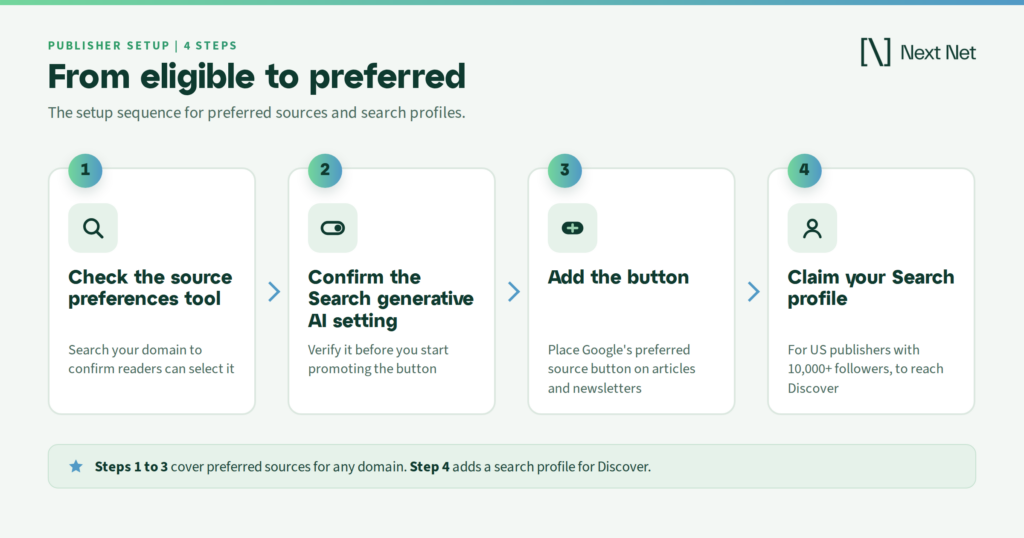
The setup fits in an afternoon: confirm your domain appears in the source preferences tool, confirm your Search generative AI setting, add the button where loyal readers finish, claim your Search profile if you qualify, and start counting the asks. Then look past Google. See where AI engines cite your pages today, and if the bigger question is getting paid for the content those engines rely on, explore SAIL for publishers.
Related articles
RSL, robots.txt, and SAIL: Three Layers of AI Content Control and Which One Does What
If you run a publishing site, you have probably been told that you need a robots.txt strategy for AI crawlers,…
The Crawl-to-Referral Ratio: The One Number Every Publisher Should Put in Front of Leadership
On September 15, 2026, Cloudflare flipped a default that touches a large slice of the web. Training and Agent crawlers…
llms.txt: What It Is, Whether Engines Read It, and How to Write One for a Publisher Site
Every year or so a new file shows up at the root of publisher sites, and this cycle’s file is…